PopText
// this logo is animated with PopText itself
// from the studio · Blender extension
Animated, decorated 3D text for Blender, built for motion designers, not just modelers.
Turn a single line (or block) of text into a fully decorated, fully animated title in minutes. Add stroke and outline, dynamic bevel, per-character entrance and exit animation, idle motion, hand-lettered "text pose" shapes, and animated glow, fade, and color-cycle materials, all from one panel in the 3D viewport.
// why popText
One addon, the whole pipeline
Non-destructive by default
Decoration stays live and editable. Nothing commits to a mesh until you explicitly ask it to.
Built on native Blender features
Outline, bevel, and animation lean on Blender's own hardened tools: curve offset, drivers, shader nodes. Not a fragile custom mesh pipeline that breaks on every font.
Designed for iteration
Presets, a fast re-apply pose workflow, and a consistent panel mean five looks in the time it used to take to set up one.
Never leaves the N-panel
Decoration → pose → animation → material, without bouncing between separate tools or add-ons.
// what it does
One panel, a fully animated title
No keyframing by hand, no separate stroke or bevel add-ons to stack. PopText handles the whole pass from a single control panel next to your text object.
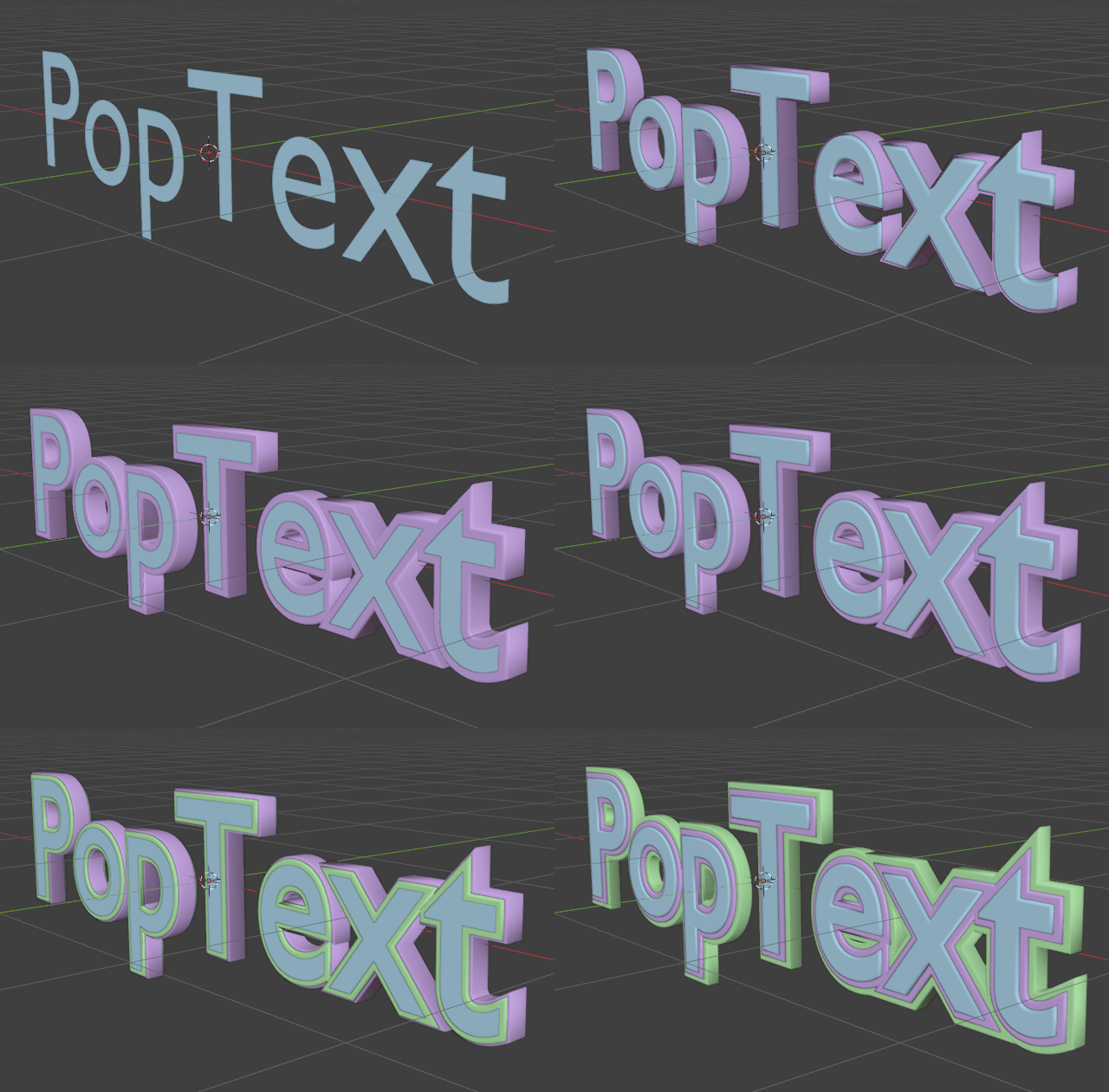
🖋 Decoration (live, non-destructive)
- Extrude & Bevel: static, or fully animated (dynamic) bevel driven over time
- Outline / Stroke: an actual edge-hugging rim, generated from the same curve engine Blender's own text extrusion uses
- Solid Outline mode: optionally close the outline into a fully solid, 3D-printable shape
- Depth Scale: control how thick the outline reads along the letter's depth axis
- Second outline layer: a fully independent second stroke (own thickness, depth scale, solid mode, material) for a double-stroke look
- Independent Fill and Outline materials
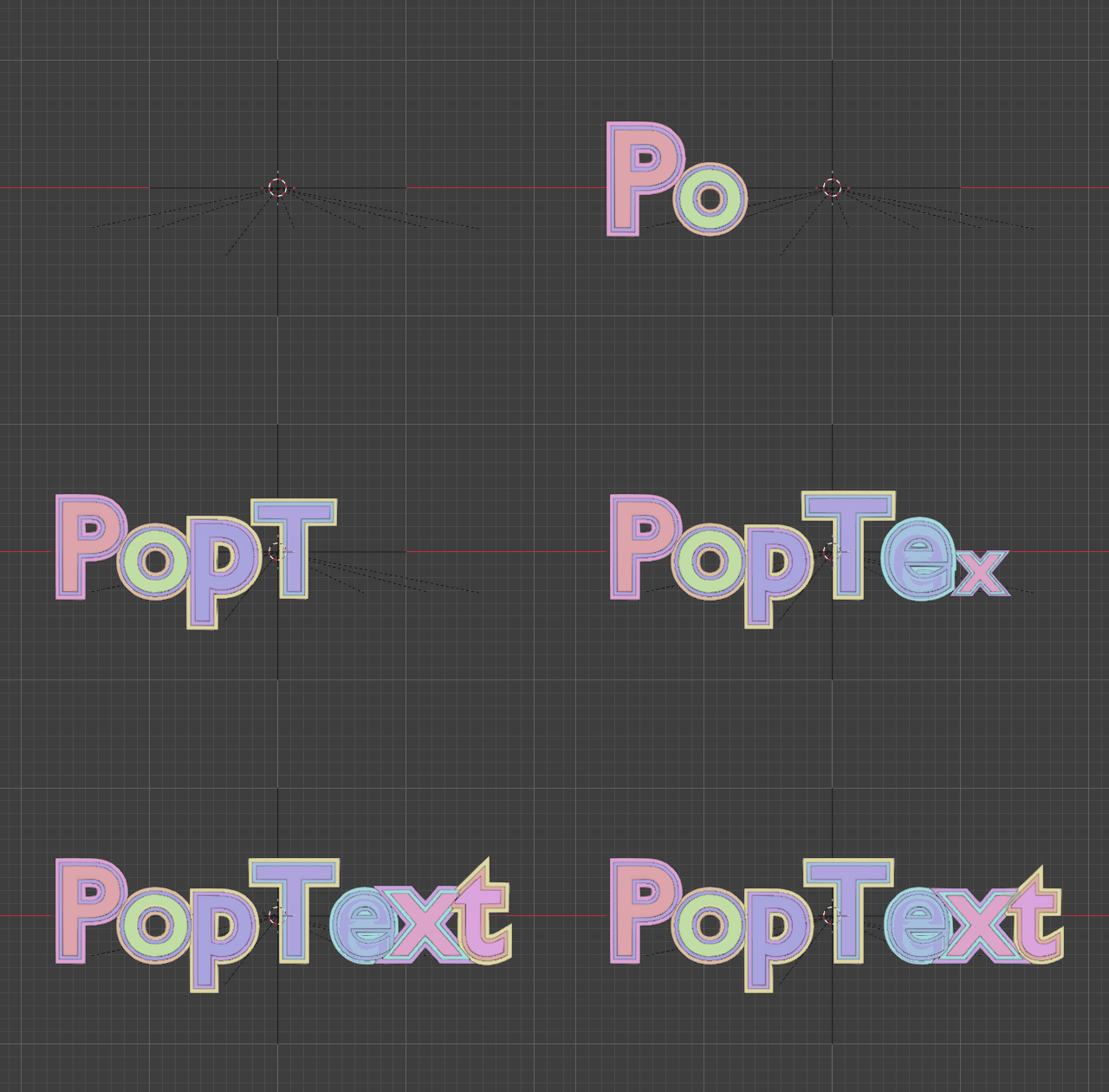
🎬 Per-character animation
- Animation In: Scale In (with Squash & Stretch), Start Offset, and Start Rotation, each with its own interpolation curve and easing
- Animation Out: a full mirror of Animation In, with completely independent timing and shape
- Reveal Order: left to right, right to left, center outward, or random
- Idle Animation: perpetual Float, Pulse, or Jitter motion via drivers. Runs forever, no baking needed
- Text Pose: four shape presets (Random, Arch, Wave, Slant) with a Character Pivot option so rotation always looks natural
- One Animate Characters button auto-detects whether to animate a fresh copy or your existing hand-tweaked pose
- Hide Original After Animate/Pose: automatically tucks the source text out of the viewport and render once its replacement exists, on by default
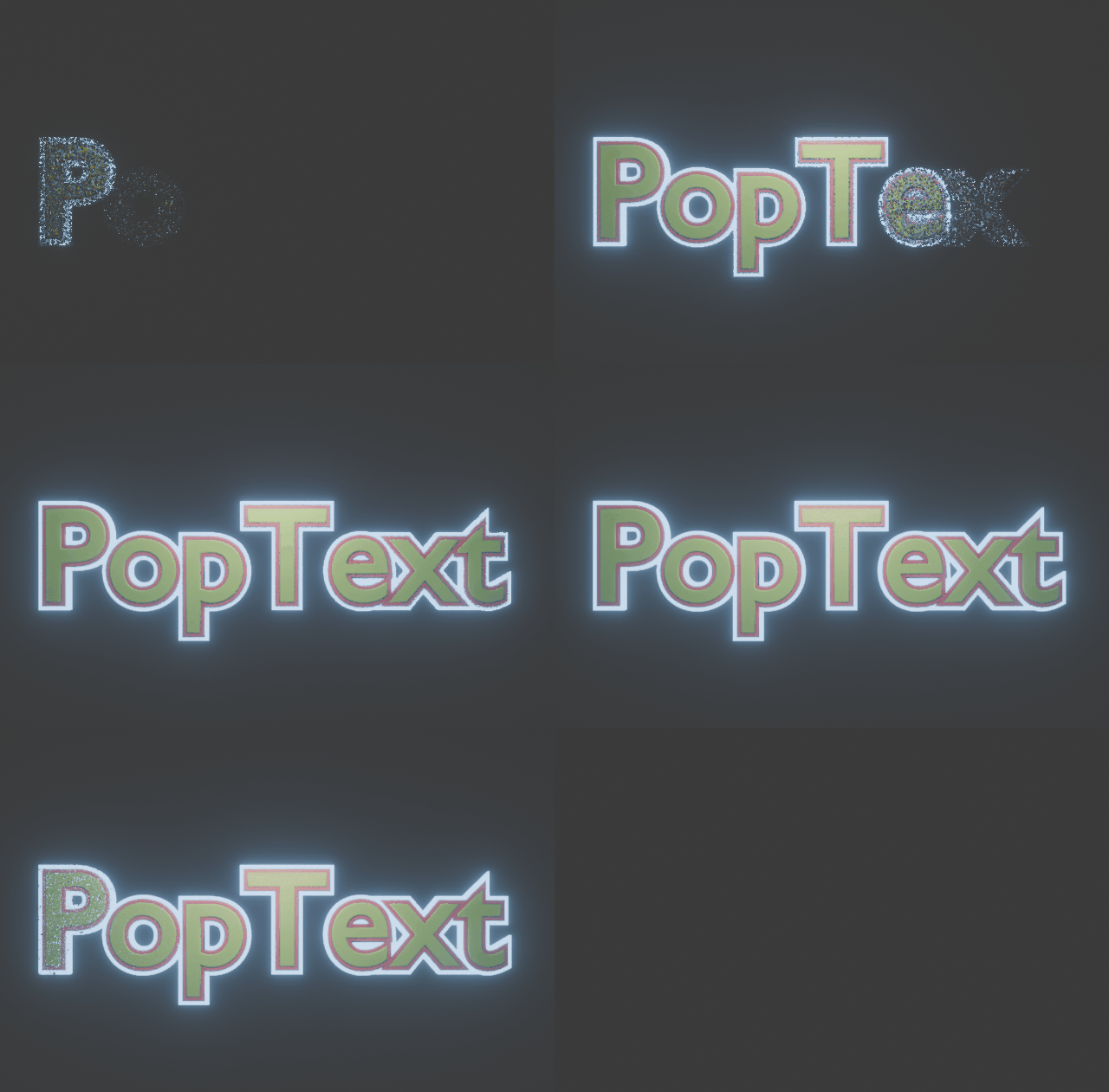
🌈 Material animation
- Per-target color: Fill, Outline, and Outline 2 each get their own independently animated Base Color, not one shared color forced across all of them
- One material per target, not per individual letter, all sharing the same underlying fade/glow/color-cycle timing
- Independently-timed Fade In and Fade Out
- Glow: static or pulsing emission
- Color Cycle: a rainbow-cycling "LED marquee" effect, with per-character phase offset for a traveling wave
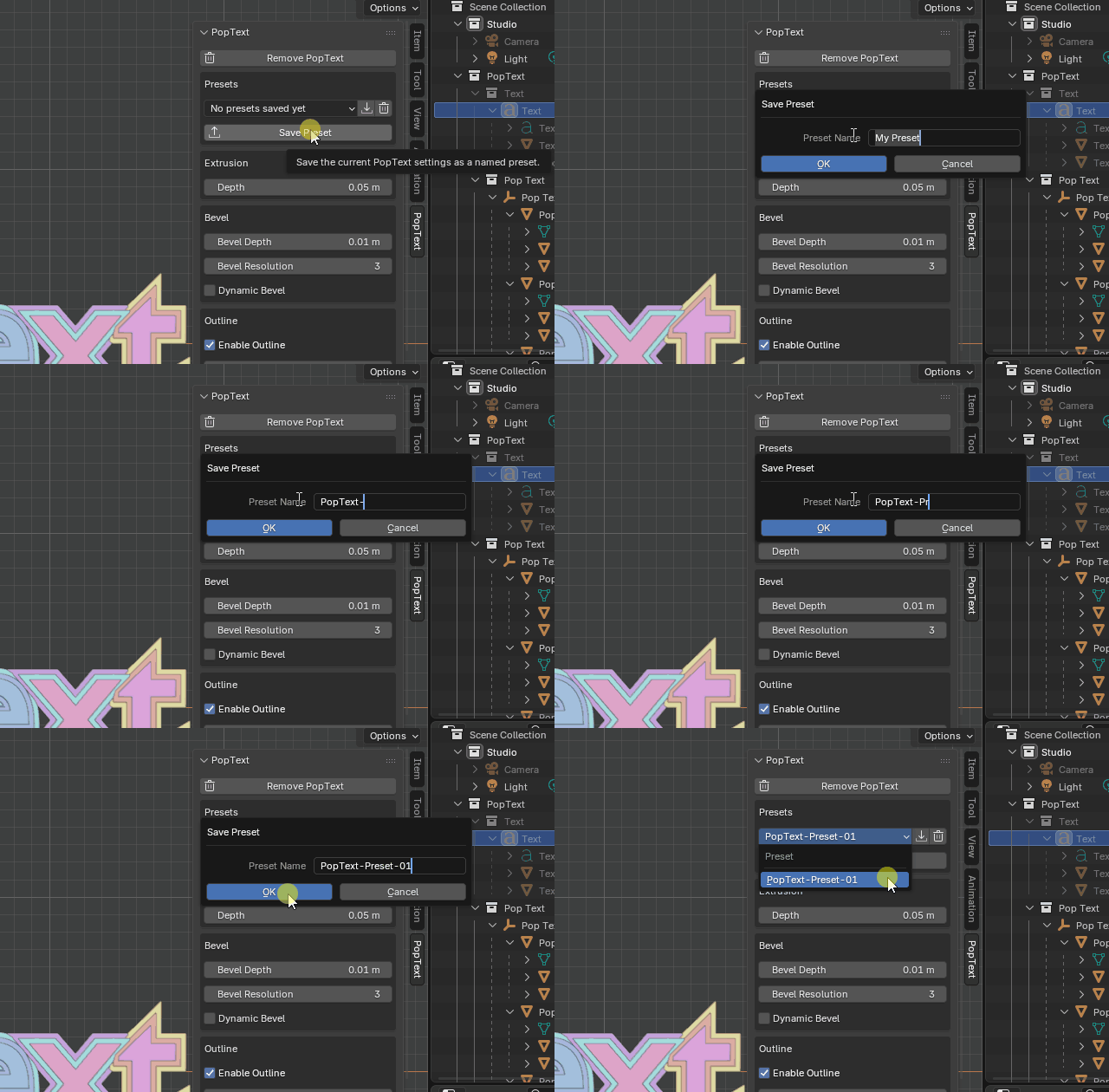
💾 Presets & organization
- Save, load, and delete named presets for your whole PopText setup, stored in your Blender preferences, so you can reuse a look across any file or project
- Every generated object lands in a clean, dedicated PopText collection structure, so your scene stays tidy no matter how many variations you generate
// see it in action
PopText's panel at work


// get started
Installation
Download the PopText .zip file (don't unzip it).
In Blender: Edit > Preferences > Add-ons > Install..., select the zip.
Enable PopText in the add-ons list.
Restart Blender after this first install. For later updates, using Reload Scripts (Scripting workspace, or
F3> search "Reload Scripts") or toggling the add-on off/on in Preferences is enough, a full restart isn't required anymore.
Getting started
Add a text object (Shift+A > Text) or select an existing one, and type your text.
Open the sidebar in the 3D viewport (press N) and click the PopText tab.
Click Add PopText.
// reference
The manual
Click a chapter to expand it. Your browser's find-in-page (Ctrl/Cmd+F) will search inside collapsed chapters too.
01Decoration▾
These settings apply directly to your text object and stay fully editable, so you can keep retyping the text and adjusting these values anytime.
Extrusion & Bevel
- Depth
- How far the text extrudes into 3D.
- Bevel Depth / Bevel Resolution
- Rounds the edges. Higher resolution = smoother rounding.
- Dynamic Bevel
- Turns the bevel amount into an animated driver instead of a fixed value, easing from 0 to your target amount over Bevel Animation Speed frames.
Outline
- Enable Outline
- Turns on a stroke/rim around each letter.
- Outline Thickness
- How far the outline extends outward.
- Depth Scale
- Scales the outline along the letter's depth axis, independent of its outward thickness. 1.0 is natural depth; lower values make a thinner sliver, higher values extend it further than the letter's own extrude depth.
- Solid Outline
- When off (default), the outline is an open, edge-hugging rim only. When on, it includes front/back caps for a fully closed, 3D-printable shape.
- Outline Material
- A separate material just for the outline.
- Rebuild Outline
- The outline updates automatically whenever you change these settings, but if you directly retype the text body in Edit Mode, click this to refresh it manually.
Outline 2
A second, fully independent outline layer with its own Thickness, Depth Scale, Solid Outline toggle, and material, for a double-stroke look. Two fixed layers, not an open-ended list, enough for a double or triple-stroke title without the extra UI a fully dynamic system would need.
Fill Material
Applies to the main body of the letters.
Advanced (collapsed by default)
- Character Merge Overlap Threshold
- Some rounded/geometric fonts (confirmed with Fredoka) draw a letter like lowercase "p" from two contours that don't share vertices, which can split it into two separate character objects, with the extra piece then linking to a neighbor's outline instead of its own. Lowering this threshold fixes that for a specific font, at the cost of being more likely to merge genuinely separate adjacent characters elsewhere, a real tradeoff, not a free fix. Saved per-object (and included in Presets), not a global setting.
02Presets▾
At the top of the panel:
- Save
- Prompts for a name and stores your entire current PopText setup (decoration, pose, animation, material settings) to Blender's own preferences, so it's available in every .blend file, not just this one.
- Load
- Pick a saved preset from the dropdown and apply it to the selected text object.
- Delete
- Remove a saved preset you no longer need.
03Character Pivot▾
A single dropdown that affects everything that rotates a character: Text Pose, Start/End Rotation, and idle Jitter.
- Baseline (default)
- Pivot sits at the bottom of each letter, derived per line by clustering where most characters actually rest, not from each character's own bounding box.
- Middle
- Pivot sits at the vertical center.
- Meanline
- Pivot sits at the top of each letter, using the same per-line clustering as Baseline.
04Text Pose▾
A static pose applied to a copy of your text. Your original stays untouched and editable.
- Expand the Text Pose section.
- Choose a Pose Style (see below).
- Adjust Position Amount and Rotation Amount. What each one controls depends on the style you picked (check the tooltip on each field for specifics).
- Scale Jitter always layers on top of any style, for a bit of size variation.
- Pose Seed: change this for a different random result. The same seed always reproduces the same pose.
- Click Apply Text Pose.
Pose styles
- Random
- Per-character random position/rotation jitter.
- Arch
- Characters follow a smile-shaped curve, each one rotating to lean naturally along it.
- Wave
- A repeating ripple; use Wave Frequency to control how many cycles run across the line.
- Slant
- A progressive diagonal shear, like an italic baseline.
Multi-line text: each line poses independently. An Arch on a two-line block gives each line its own arch, not one arch spanning both lines.
05Idle Animation▾
Perpetual motion added after a character's reveal. It's driver-based, so it runs forever without needing to be baked or re-rendered if you extend your timeline.
- Expand Idle Animation and enable it.
- Choose a style (see below).
- Idle Speed / Idle Amount control the motion's speed and strength.
- Float
- Gentle vertical bob.
- Pulse
- Slow breathing scale.
- Jitter
- Small continuous rotational wobble.
- Phase Stagger
- 0 moves every character in sync; higher values spread the motion into a traveling wave across the text.
06Animation In / Animation Out▾
These build the actual per-character reveal/exit animation, applied when you click Animate Characters. Both sections share the same structure, fully independent of each other:
- Scale In/Out
- Character grows from (or shrinks to) nothing. Optional Squash & Stretch overshoot.
- Start/End Offset
- Character starts (or ends) displaced from its position. Pick a Direction (Up/Down/Left/Right/Front/Back/Random) and a Distance. A live hint shows that distance as a percentage of the letter's own height.
- Start/End Rotation
- Character starts (or ends) rotated away from its final orientation. Pick an Axis (X/Y/Z/Random) and an Angle.
- Interpolation / Easing
- How the motion curves: Sine, Quad, Cubic, Back (overshoot), Bounce, Elastic, Constant (hard cut), or Linear, each paired with Ease In, Ease Out, or Ease In-Out.
- Duration
- How many frames the transition itself takes.
- Reveal/Exit Order & timing
- Left-to-right, right-to-left, center-outward, or random, plus Start Frame / Duration Per Character to control how many frames apart each character starts.
Preset dropdown (top of Animation In): a quick-load shortcut. Pick Pop In, Rise & Settle, Flip In, Slide In, Instant, Stretch In, or Explode → Assemble to fill in a sensible starting combination of the fields above, which you can then hand-tune freely.
07Material Animation▾
Independent of the position-based animation above. It covers fade, glow, and color effects, applied per target (Fill, Outline, Outline 2), each built from its own material but sharing the same underlying fade/glow/color-cycle logic since none of that depends on color.
Expand Material Animation and enable it. (This overrides Fill/Outline/Outline 2 Material above for the animated copy only. Your live original text is unaffected.)
- Base Color
- Set independently per target: Fill, Outline, and Outline 2 each keep their own color, pre-filled from whatever material they already had assigned.
- Fade In / Fade Out
- Each has its own Start Frame, Duration, Order, and Duration Per Character, fully independent of the position animation's timing. Shared across all targets.
- Glow
- Color and Strength, with an optional Pulse (its own Speed and Phase Stagger). Shared across all targets.
- Color Cycle
- A rainbow-cycling emission color; works on its own without needing Glow separately enabled. Has its own Speed and Phase Stagger too. Shared across all targets.
08Animate Characters▾
The large button at the bottom of the panel. This is the one action that bakes everything above (Animation In/Out, Idle, Material Animation, and optionally Text Pose) onto a new, separate copy of your text, named "Pop <your text>". Your original text object is never modified.
It automatically detects which mode to use:
- If you've already run Apply Text Pose on this text and that pose group still exists, clicking Animate Characters animates those exact, possibly hand-tweaked pieces in place.
- Otherwise, it generates a fresh set of pieces from your live text.
To go back to generating fresh (ignoring an old pose), delete that pose's Empty object in the Outliner. The next click will no longer find it and falls back automatically.
Each run creates its own new collection (inside the top-level PopText collection) so multiple attempts don't pile up in one place.
09Known Limitations▾
PopText is actively developed, and these are real, currently-accepted tradeoffs, not things we're unaware of. Worth a read before relying on PopText for a specific font or workflow.
Outline generation on some typefaces
Outline growth happens per line, not per character, since there's no clean way to isolate one character's growth the way a blank line can isolate a whole line's.
- At large thickness relative to letter spacing, two adjacent characters' outline geometry can touch and fuse into one mesh piece that can't be split apart afterward. PopText detects this and warns you (status bar + Info log) rather than silently producing a wrong result, but doesn't prevent it outright.
- Some rounded/geometric fonts (confirmed with Fredoka) can split a letter into two separate character objects; the Character Merge Overlap Threshold (Advanced, in Decoration) can fix this per font, at the cost of being more likely to wrongly merge separate adjacent characters elsewhere.
- A small number of spike/artifact faces can still appear on specific glyphs on certain typefaces. A defensive pass removes geometry that ends up implausibly far from where it should be, but since it works by deleting bad faces outright, it can leave a small gap rather than a fully closed surface, and rare borderline cases can slip past its threshold undetected.
Character Pivot is geometrically derived, not read from font data
Blender's font API doesn't expose real ascender/descender/x-height/cap-height metrics, so Baseline and Meanline are inferred by clustering where most characters in a line actually sit or top out. Falls back to a plain whole-line bounding box for very short lines or unusual letter composition (all-caps, all-descenders) where no clear majority can form.
Dot/accent regrouping isn't font-aware
Reuniting a loose mesh island with its base character (like the dot of "i" with its stem) is done by bounding-box overlap, not by understanding glyph structure. Can misfire on unusual fonts or extreme kerning.
Left-to-right text is the tested case
Character ordering (reveal/exit stagger, Text Pose shape progression) assumes left-to-right reading order. Right-to-left scripts and complex script shaping haven't been designed for or tested.
Material Animation builds its own materials
It can read a one-time starting color from your assigned material, but it can't preserve custom textures or a complex existing shader graph. Animating on top of arbitrary existing materials would mean editing a node graph we don't control, a deliberate scope decision, not an oversight.
Two outline layers, not an unbounded number
A deliberate design choice, covers a double or triple-stroke look without the UI complexity a fully dynamic system would need, not a technical ceiling, but worth knowing either way.
Non-uniform object scale + rotation
Can shear or skew, same as any Blender object. A general 3D limitation, not specific to PopText, but worth knowing given how much PopText leans on rotation. Apply non-uniform scale (Object > Apply > Scale) before decorating for predictable results.
// stuck on something?
Troubleshooting
Nothing happens when I click a button.▾
Make sure the text object itself is selected and active (not one of its generated pieces or the outline object).
Outline material/thickness doesn't update.▾
Click Rebuild Outline. This is needed after directly retyping text in Edit Mode, since that specific kind of edit doesn't trigger a live refresh automatically.
Just installed an update and something seems off.▾
Fully restart Blender rather than just toggling the add-on off and on.
Multi-line text and outlines/animation behaving oddly.▾
Multi-line support is handled per-line internally; if you hit an edge case, splitting the lines into separate text objects is a reliable fallback.